Setup
🔗 Single Sign-On (SSO) Integration Guide
Section titled “🔗 Single Sign-On (SSO) Integration Guide”This document aims to provide a step-by-step guide for your operational and technical teams to set up Single Sign-On ( SSO) with AIHR using Auth0 as our identity management platform.
Jump to:
- Introduction to SSO
- Benefits of SSO
- Limitations
- Prerequisites
- Configuration Steps
- Testing the SSO Integration
- Team Management (Authorization)
💡 Introduction to SSO
Section titled “💡 Introduction to SSO”Single Sign-On (SSO) is an authentication process that allows a user to access multiple applications with one set of login credentials. AIHR uses Auth0 to provide SSO, ensuring a seamless and secure login experience for users from our customers’ domains.
To offer a uniform experience to all AIHR members across the web and mobile, AIHR uses an identifier-first login approach.
✅ Benefits of SSO
Section titled “✅ Benefits of SSO”- Improved Security: Reduces the need for multiple passwords, minimizing the risk of password fatigue and security breaches.
- User Convenience: Users can log in once and gain access to multiple applications, improving their experience and productivity.
⚠️ Limitations
Section titled “⚠️ Limitations”While AIHR strives to provide a seamless and efficient SSO experience, there are certain limitations to be aware of:
- No Tenancy Support: AIHR does not support tenancy. This means that customers will not receive a dedicated subdomain (e.g., clientx.aihr.com) as AIHR operates as one global community.
- No White-Label Landing Pages: AIHR does not provide customized, white-labeled landing pages. Given the diverse entry points into the AIHR ecosystem, it is not feasible to ensure users consistently land on a specific client’s landing page.
These limitations are in place to maintain a unified and cohesive user experience across our global platform.
📋 Prerequisites
Section titled “📋 Prerequisites”Before setting up SSO, ensure the following:
- You have an active license with AIHR.
- Your organization uses a supported identity provider (IdP).
- You have administrative access to your IdP.
- Your IdP supports SAML or OIDC, or another supported protocol by Auth0.
- Ensure you have provided your organization’s email domain(s): (e.g.,
@yourcompany.com) to your point of contact at AIHR
🛠 Configuration Steps
Section titled “🛠 Configuration Steps”The Single Sign-On (SSO) configuration process uses a secure, dedicated Self-Service Assistant powered by Auth0, which significantly streamlines setup and eliminates the need for manual file exchange.
1. Initiate the Connection via Self-Service Link
Section titled “1. Initiate the Connection via Self-Service Link”Your Learning consultant will generate and send you a secure, unique Self-Service SSO Configuration Link (URL). This link provides your IdP administrator with direct access to our guided configuration assistant.
- ⚠️ Important Note: This link is single-use and intended only for the administrator responsible for the technical SSO implementation. If the link is clicked by anyone else or if the process is not completed, the link will be invalid. Make sure to share this link with the right person in your organization. If the link is not working, please request a new one from your learning consultant.
Click the provided Self-Service SSO Configuration Link to begin the process.
2. Complete the Setup using the Self-Service Assistant
Section titled “2. Complete the Setup using the Self-Service Assistant”The assistant is a multi-step experience that will guide you through the configuration of the connection directly between your IdP and AIHR.
| Assistant Step | Customer Action |
|---|---|
| Select Identity Provider | Choose your organization’s IdP (e.g., Okta, Entra ID, ADFS, Google Workspace, Generic SAML/OIDC). |
| Create Application | Follow the written instructions to create the necessary application/client for AIHR within your IdP environment. |
| Configure Connection | Input the required configuration details (e.g., your domain, Client ID/Secret, or upload your IdP’s metadata URL/file) as prompted. |
| Claims Mapping (Attribute Mapping) | Crucial: Map the required user attributes from your IdP to AIHR’s system. Ensure the following attributes are correctly mapped. You must sanitize and lowercase all email addresses. |
| Required Attribute Mapping: _ email: The user’s primary email address. _ givenname: The user’s first name. * familyname: The user’s last name. * user_id: A unique identifier for the user (any format is accepted, provided it is unique). | |
| Assign Access | Configure which users or user groups in your IdP should be granted access to the AIHR application. |
| Test SSO | Use the button provided within the assistant to perform a test login to confirm the connection is successful and attributes are passed correctly. |
🧪 Testing the SSO Integration
Section titled “🧪 Testing the SSO Integration”Once the configuration is complete on both sides, it’s time to test the connection.
- Initiate a Test Login: Attempt to log in to AIHR using an email address from your configured domain into app.aihr.com. Note: The user must be invited to AIHR before they can sign in.
- Verify Redirection: Confirm that the login attempt successfully redirects to your IdP’s login page.
- Complete Authentication: Log in using your IdP credentials and verify that you are successfully redirected back to AIHR and granted access.
- Check User Attributes: Ensure that user attributes (email, name) are correctly passed and displayed in AIHR.
❗ Common Mistakes
Section titled “❗ Common Mistakes”When logging in using Single Sign-On (SSO), members are not required to create a password. Authentication is handled using your existing company account credentials. If a member is asked to create a password, this indicates a configuration issue.
👥 Team Management (Authorization)
Section titled “👥 Team Management (Authorization)”Although we use SSO for user authentication, access management still occurs within the AIHR platform. This means that even after setting up the SSO connection, users might not immediately have access to AIHR tools and content upon their initial login.
To grant access, there are two methods:
Method 1: Inviting Members to the License
Section titled “Method 1: Inviting Members to the License”- License holders and managers can **invite members to the license **. See dedicated article to invite members
- Once an invited member logs in to AIHR using SSO, no further confirmation from the license holder or managers is required, and the member will automatically be part of the license, gaining access to tools and content on AIHR.
- For large lists of members, AIHR learning consultants can assist with the initial invitation process. To invite members in bulk, please send the list of emails to your account representative._
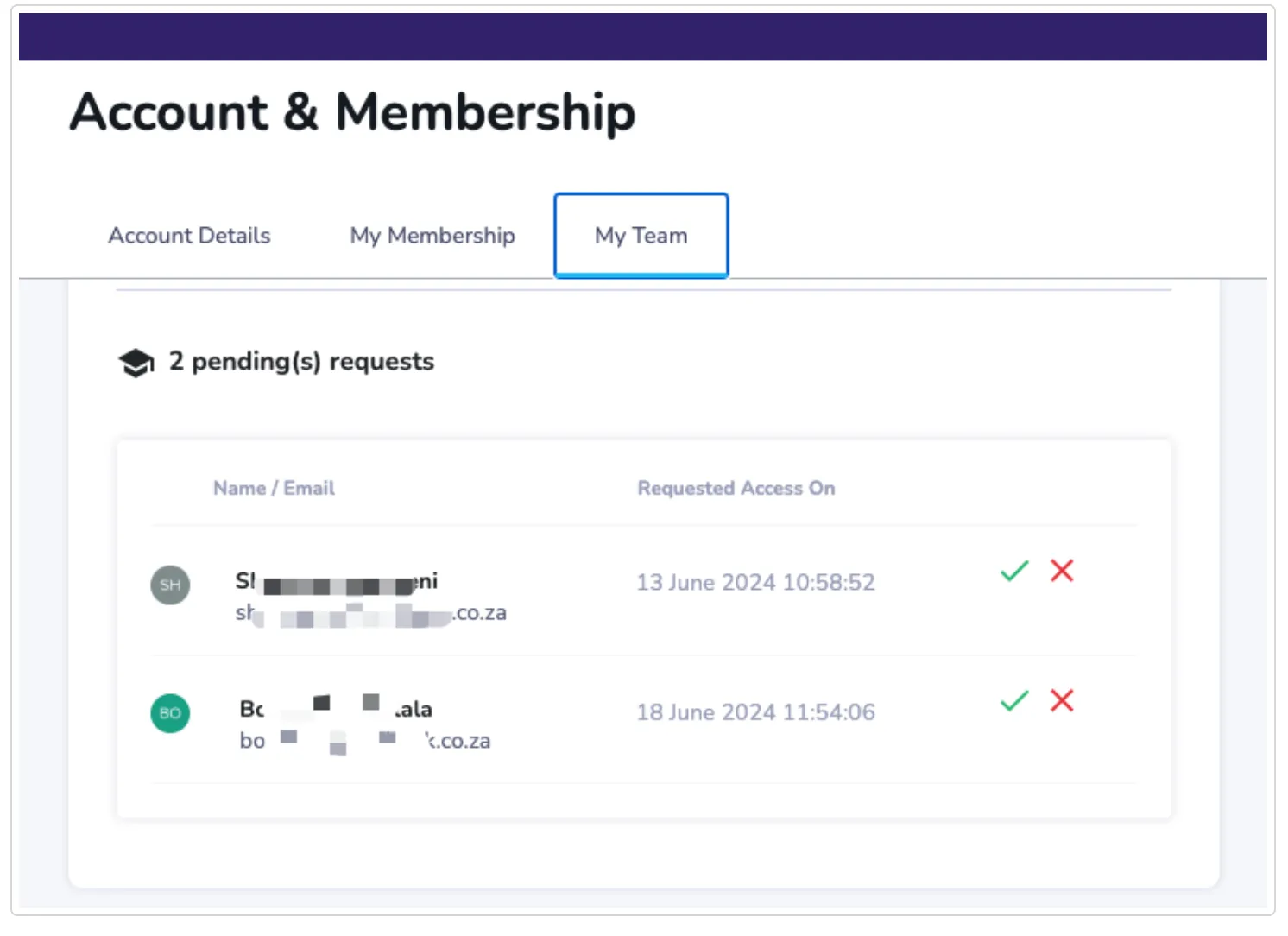
Method 2: Requesting Access After Login
Section titled “Method 2: Requesting Access After Login”- After a successful login with SSO, if there is an active license on AIHR for your organization, users will be able to join the existing license.
- The license holder or managers must then confirm the request on app.aihr.com for the user to be granted access to AIHR tools and content.
Any issues or questions? Please contact your AIHR account representative or the Support Team (support@aihr.com).